We run our own shops on Kaniva, so it changes every week. Here's what shipped lately, or read the week-by-week story in the Build Log.
October 2, 2026 · Improved — Inventory
Stock is entered in one place
With Advanced Inventory, a product's stock is changed bin by bin on its inventory item's page or the Scan page. The product form and the Inventory list show the number with a link there instead of a box, so a typed total can no longer leave the bins out of step
Taking stock never takes a bin below zero: it takes from the home bin, then the fullest other bins, then stock that's in no bin. A transfer of more than the origin holds is refused instead of creating stock at the destination
October 2, 2026 · Improved — Inventory
Inventory item page
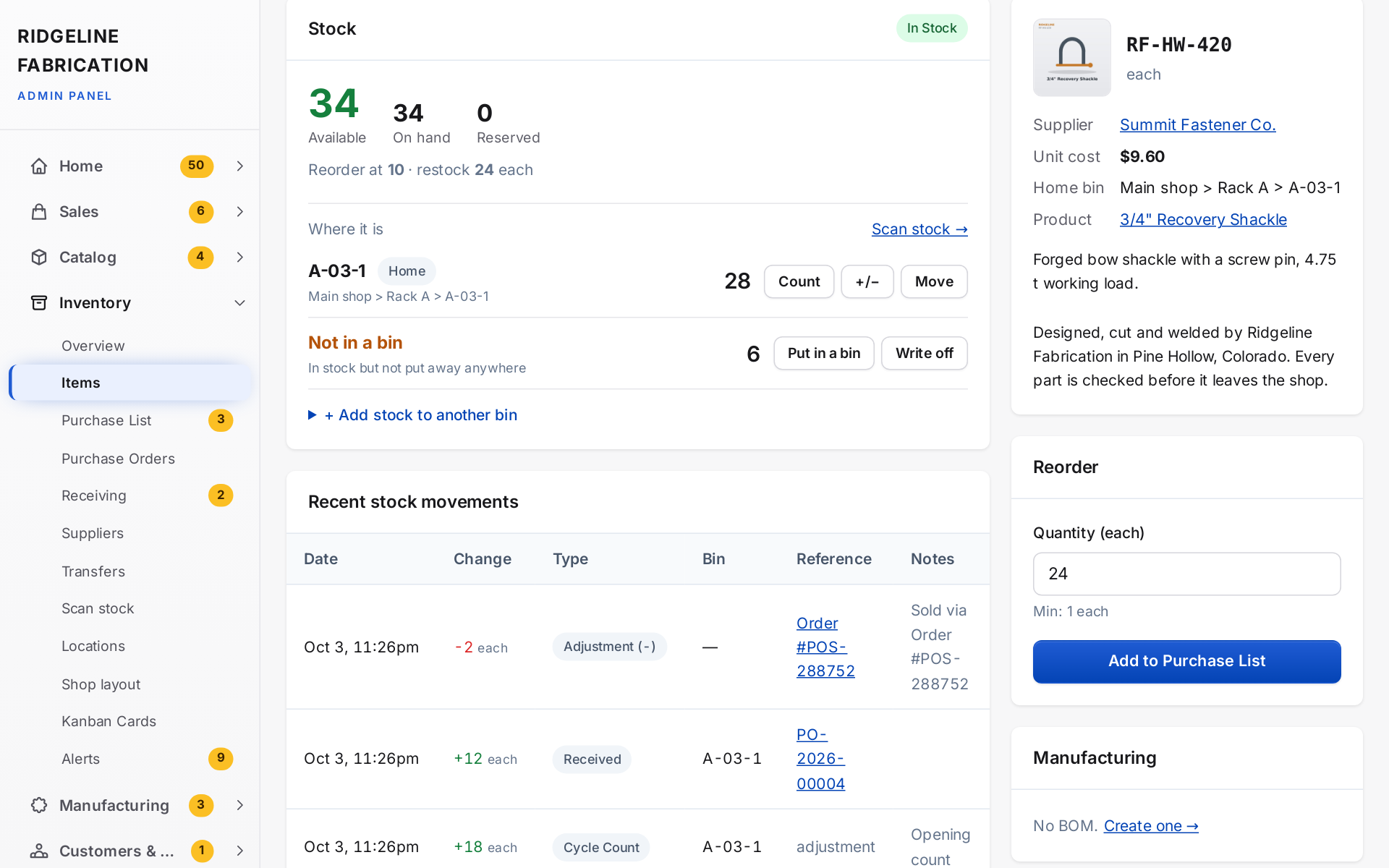
Stock is in one card at the top: available, on hand and reserved, then every bin the item is in with Count, +/− and Move on each. The home bin is listed first, even when empty
Stock that isn't in any bin shows as Not in a bin, with Put in a bin and Write off (for lost or damaged stock; no bin changes). The separate item-wide Adjust Stock and Cycle Count forms are gone for stores that use bins, so the bins and the total can't drift apart (stores without bins keep them)
Stock movements show which bin each change was at; details, reorder and manufacturing are tidied into the side column
An item's page: available, on hand and reserved, the bins that hold it, and its recent stock movements
October 2, 2026 · New — Inventory
Zoom and pan the shop layout
Inventory → Shop layout has +, − and Fit buttons in the corner of the plan. Pinch with two fingers on a phone or tablet, or hold Ctrl (⌘ on a Mac) and scroll, to zoom in where you are pointing
Drag an empty part of the plan to move around it (or hold Space and drag, or drag with the middle mouse button). Once zoomed in, plain scrolling moves the plan too. Keys: + / − zoom, 0 shows the whole floor
October 2, 2026 · New — Inventory
Share a shop layout between stores
Two stores in one building can share one shop layout: Inventory → Shop layout → Shared layout. The following store copies the drawing and gets the same shelf codes, so one set of labels on the racks works for both; stock, bins, carts and orders stay each store's own
The source store edits the layout, and the others update when it presses Generate. Sync now, Make this store the source and Unlink are on the same card. Unlinking leaves each store with its own full copy
October 2, 2026 · Improved — Inventory
Shop layout walk goes around things
The walk on Inventory → Shop layout now routes around racks, floor areas, benches and walls, through doors, and stays inside the building outline, and the order is planned for the shortest total walk (no zig-zagging or doubling back). Pick lists follow it, the walk ends at the packing spot, and the walk-order card shows how far it is
Each stop's number sits where you stand for it. The preview warns about anything that can't be reached on foot, and about rack sides with no room to stand in front of them
Floor areas and benches can be tied to a work center and a build stage, shown on the plan
October 2, 2026 · Improved — Inventory
Inventory items list
The Location column lists every bin a part is in with how many (its home bin marked), plus any stock not in a bin yet; the location filter finds parts with stock in that bin, not only their home
On phones, Track and Active show with their labels instead of as two unlabelled boxes at the top of each card, and prices line up
The item and product edit pages call the location Home bin (where the part belongs) and list every bin it's actually in, with a link to move stock
Scan stock is in the Inventory menu, the top-bar Scan dialog links to it (Put away or count stock), and the installed app's icon offers it on a long press
October 2, 2026 · Improved — Inventory
Scan page counts
Count on the Scan page cycle-counts the part in the current bin: enter what's really there and the difference is booked as a count
The quantity goes back to 1 when you scan the next part
Stock that's in the total but in no bin yet (from before you had bins) shows as Not in a bin yet, with Put the N not in a bin here; Count uses it first so nothing is counted twice
October 2, 2026 · New — Manufacturing
Work centers list
Manufacturing → Work Centers: add your machines and work areas once, then pick them from a dropdown on work orders, BOM steps and shop-layout zones (or add one there with + New work center…). Rename fixes a name everywhere it's used
October 2, 2026 · New — Manufacturing
Work zones: jobs ready when their parts arrive
Tie a floor area on Shop layout to a work center and it becomes that work center's work zone. When every part a work order still needs is there (on the area, or in a bin or cart parked there), it's ready to start: you get a push and it's logged
The Live Board shows each job's parts in its zone and a Ready to start count, the Floor Kiosk shows it on each job (ready ones first), and the work order page lists what's still to bring and where it is
Completing a work order uses the parts in its zone first, then the home bin
October 2, 2026 · New — POS
Camera scanning at the register
Camera beside the register's search box scans barcodes with the phone or tablet camera and adds each item to the sale; it stays open for the next item until you tap Done. Each scan beeps and buzzes (a different double buzz when a product isn't found); Sound turns the beep off on that device
The cart shows More items and fades at the bottom when the list continues below
October 2, 2026 · New — POS
Wi-Fi receipt printer and cash drawer
Register receipts print on a Wi-Fi receipt printer (Star CloudPRNT, e.g. mC-Print3) with no print dialog, from any phone, tablet or computer, and the cash drawer plugged into it opens on cash sales and cash refunds
Open drawer at the register opens it with no sale, prints a slip and logs who and why; the session report lists them
Set up at POS Settings → Receipt Printer & Cash Drawer: add the printer, paste its address into the printer, press Test print
October 2, 2026 · New — Orders, Inventory
Pick lists in walking order
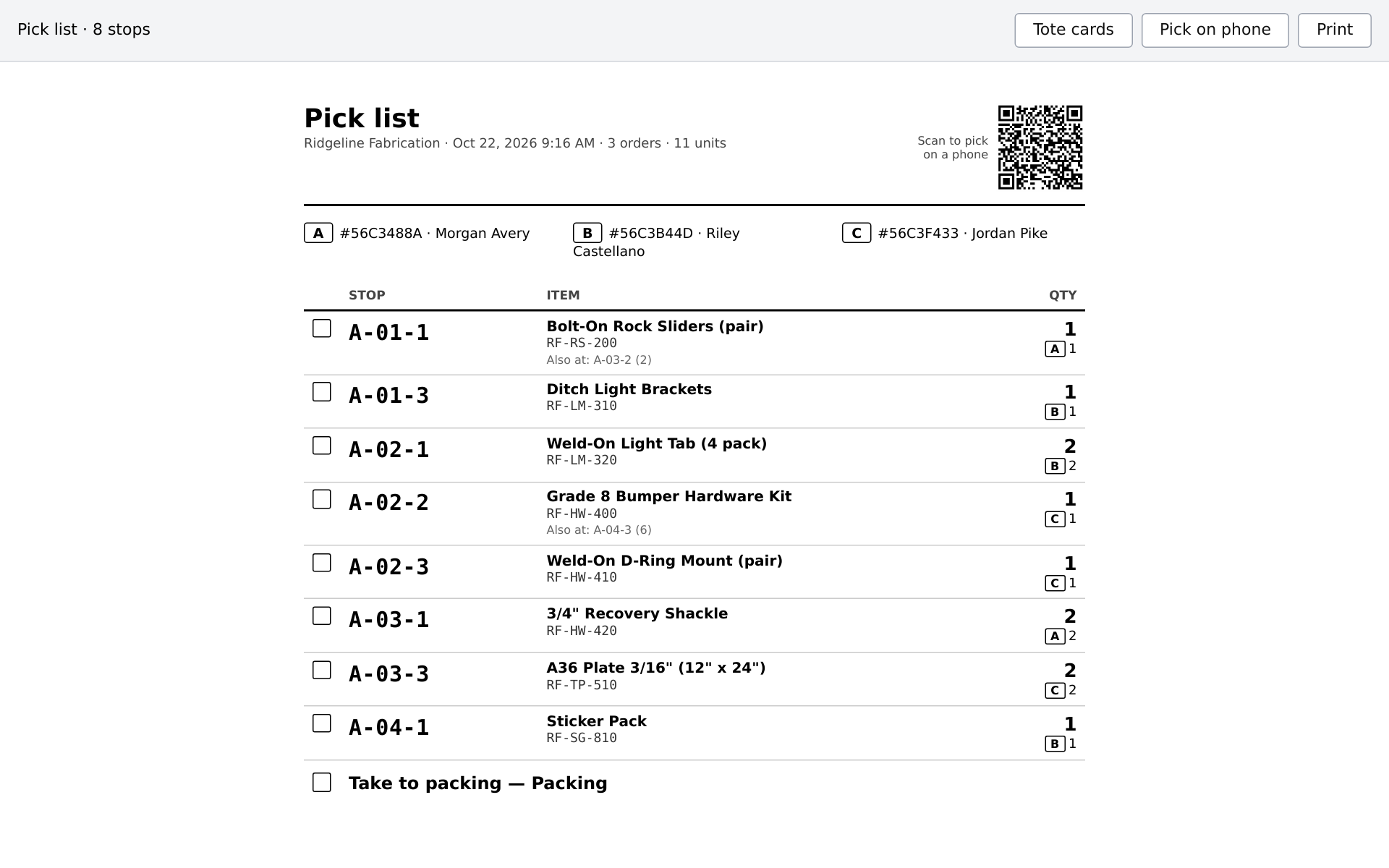
Pick list on an order, or for several ticked orders on the Orders list, lists every item in the order you walk the shop: the home bin when it has enough, otherwise the places holding the item in walk order. Bins and carts show where they sit (LOC-000231 on A-03-2, Cart 1 at Cart parking 2), and the walk ends at your packing spot
Several orders share stops, with a tote letter per order and how many go in each tote. Each stop shows the other places the item is (Also at), and anything not on a shelf is listed at the end
Pick on phone (Advanced Inventory) shows one stop at a time with a small floor plan: scan the bin or shelf label first (Picked waits for it, and a wrong label is refused), then scan the part or tap Picked if it has no barcode. A Label missing? link confirms a spot by hand and the end screen lists those stops. If you're short it offers the item's other places. Owners and admins can turn the label-first rule off at Inventory → Shop layout → Picking, so scanning the part alone is enough. It only checks; stock changes as before
Packing slips show the Bin for each line with Advanced Inventory
Tote cards (optional, Inventory → Shop layout → Picking): the pick list gets a Tote cards button that prints one card per order, on 4 × 6 labels or letter paper (four a page), with its big tote letter, order number, customer, item count and a barcode. Drop it in the tote; at packing, scan it with any scanner on an admin page to open that order's packing station
A pick list for three orders, sorted in the order you walk the shelves, with a QR code to pick on a phone
October 2, 2026 · New — Inventory
Place bins on shelves by scanning
The Scan page has a switch at the top: Put away stock (as before) or Place bins on shelves. Scan a shelf label, then each bin or tote on it: they go on that shelf, with their paths and walk order updated, and Undo puts one back
Scanning another shelf spot moves on to that shelf. Floors and racks can't hold bins directly, and shop-layout spots never move
A shelf or bin's page lists the bins on it and has Scan bins onto this
Placing bins: scan a shelf label, then each bin or tote that sits on it
October 2, 2026 · New — Inventory
Print new bin tags
Locations → New bin tags makes 1 to 200 bins with their own codes, kept under Unassigned bins, and opens their labels in any label size. Scan them onto a shelf when they get a home
October 2, 2026 · New — Inventory
Shop layout
Inventory → Shop layout draws your shop: floors, racks, shelving, floor areas, benches, walls, doors and stairs, to scale in feet, on a computer or tablet (view only on a phone). It saves as you go
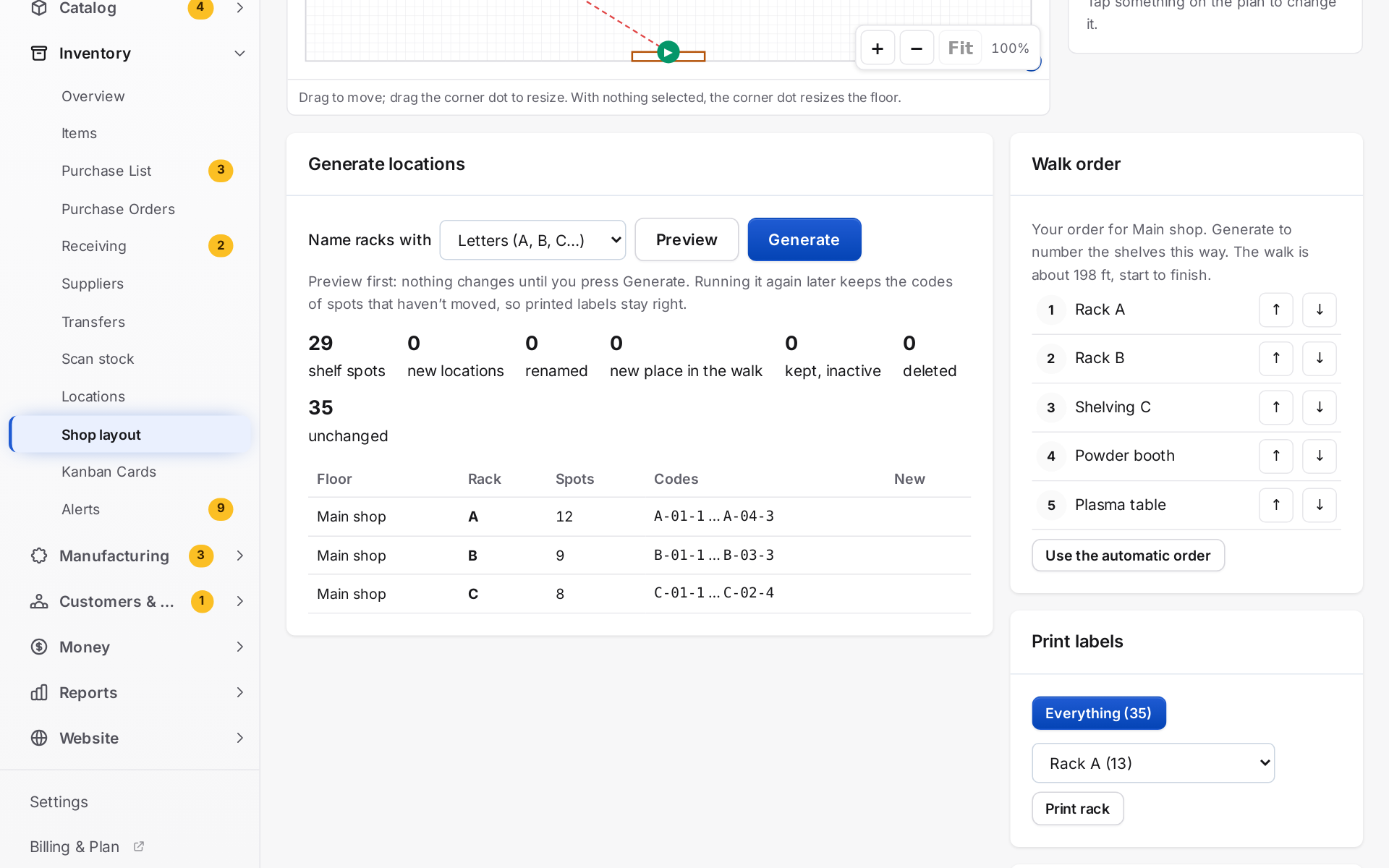
Generate numbers every shelf spot in the order you walk the shop, as rack-bay-level codes like A-03-2 (level 2 from the floor), with the floor number in front above the first floor (2A-03-2). Each rack can have its own bays and levels; double-sided racks get a letter per side
Preview first shows the walk on the plan and every code it will make. You can drag racks into your own order
Generating again after changes keeps the codes of spots that didn't move, so printed labels stay right; removed spots that still hold stock are kept inactive until you move it
Print labels for the whole shop, a floor or a rack, in walk order
The shop layout: generate shelf codes rack by rack and set the order you walk them
October 2, 2026 · New — Inventory
Shop layout shelves per bay, building outlines and the packing spot
A rack or shelving unit can have a different number of shelves in each bay: tick Different per bay and type each bay's count. The plan shows the count in each bay, and a bay with fewer shelves gets fewer codes
Building outline draws a building that isn't a rectangle (an L-shape, a cut corner, angled walls): tap the corners, then drag them to adjust. Outside the building is shaded, and Preview warns about a rack drawn outside it
Mark the bench or floor area where orders are packed as Packing / shipping. It's tagged on the plan, and pick lists will end there
October 2, 2026 · Improved — Labels
Label page spacing; Share removed
The label options and the NIIMBOT box are laid out more cleanly: each setting’s name sits above it, dropdowns line up, and Print to NIIMBOT is a full-width button with Darkness and Position below it
The 3 × 1.5 in side matches: one Print box after the options with a full-width Print button and the PrintNode printer underneath, with Download PDF and Save as default in a small row above it
Share to NIIMBOT app is gone (the NIIMBOT app didn’t appear in the share list). Download image under each label still saves it for the app
October 1, 2026 · Improved — Labels
Label page remembers your options and stays connected
The label page no longer reloads when you change the size, layout, barcode, price, date, footer or copies, press Update preview, or Save as default, so a NIIMBOT paired over Bluetooth stays connected between sheets (switching to or from the 3 × 1.5 in thermal size still reloads)
At a NIIMBOT size the page is simpler: the product, then the options, then Download PDF and Save as default, then Print to NIIMBOT (where the PrintNode box is for 3 × 1.5 in). The PrintNode panel and the PDF Print button only show for 3 × 1.5 in labels, and Update preview is gone because the page updates by itself
The label page remembers the size, layout and options you last used for each kind of label (products, items, bins), for you on any device, so the next product you open starts where you left off. Save as default is now the store's starting point for anyone who hasn't printed that kind of label yet
October 1, 2026 · Improved — Labels
NIIMBOT label position
Print to NIIMBOT has a Position setting to move the print left or right on the roll (in half-millimetres, remembered on your phone). It starts 3 mm to the left, which centres labels on a NIIMBOT B1 with 50 × 30 mm labels
October 1, 2026 · New — Admin
NIIMBOT labels from your phone
The label page (products, inventory items and bins) has a Size option: 3 × 1.5 in thermal as before, or 50 × 30 mm and 40 × 30 mm for NIIMBOT printers such as the B1. The size is kept with Save as default
Small labels are drawn dot for dot at 203 dpi, in black and white only, so text and barcodes come out crisp. Layouts: Standard and Price tag (big price) for products, Standard and Big SKU for items, Bin for locations
Print to NIIMBOT prints straight to the printer over Bluetooth from Chrome on Android (or a computer with Bluetooth), with copies, a darkness setting, progress and Cancel. On an iPhone or in other browsers, Share to NIIMBOT app sends the label images to the NIIMBOT app, and each label has a Download image link
Print, Download PDF and Send to printer (PrintNode) work for the small sizes too, one label-sized page per label
October 1, 2026 · Improved — Admin
Admin top bar
+ New moved to the right, just before the notifications bell, and every top-bar button (Search, Scan, Help, Appearance, +) now shares one look in light and dark mode instead of a bright blue + button
Calmer dark mode for Kaniva Blue: a softer navy background, gentler card edges, and toned-down green, blue and yellow figures so they no longer clash (Graphite and Workshop Green keep their own backgrounds and get the softer figures too)
October 1, 2026 · New — Settings
Print logo
Upload a black-and-white print logo at Settings → Theme. POS receipts, product / part / bin labels and packing slips (including dropship packing slips) use it, so a dark or color website logo doesn’t print as a black block on thermal paper. Without one, receipts and labels use your website logo and packing slips show no logo
October 1, 2026 · Improved — Labels
Label printing is sharper and keeps the admin menu
Print on the label page now prints the PDF version. Thermal printers print it as sharply as Send to printer; printing the web page itself came out soft
The label page (products, parts and bins) now sits inside the admin with the left menu, Search and Scan
Products have an Identifiers section (Basics tab): UPC / EAN / GTIN, Brand, MPN, ASIN and Condition. Variants get their own UPC, MPN and ASIN in the variants table
A barcode with a typo is caught: "That barcode's check digit doesn't add up — check for a typo." A barcode another product already has is saved with a warning naming it
A 12-digit UPC and the same number as a 13-digit EAN count as one, wherever you type or scan it
Scan a maker's barcode at the POS register, in the Scan box or in admin search and the product comes up (part numbers and variant SKUs still come first)
Google Shopping feed: sends the UPC, your Brand and MPN, and the Condition, and marks custom-made products (no UPC, no brand + MPN) as having no identifiers, as Google asks. A product on sale no longer sends two prices
Shopify import: Variant Barcode becomes the UPC (a broken one is skipped with a warning), and Vendor becomes the Brand unless it's your own store name
Supplier feeds can match the supplier's file by UPC / GTIN
Product labels can print the UPC as the barcode instead of the part number (Barcode: UPC / GTIN)
The products API returns and accepts the new fields and can look a product up with ?gtin=
October 1, 2026 · New — Admin
Scan anything
A Scan button sits beside Search on every admin page. Type or scan a code, or tap Use camera on a phone, and Kaniva opens what it belongs to: a bin, an inventory item, a product, an order, a shipping box, a kanban card, a purchase order, a work order or job, or a transfer. If two things share a code, you pick
A USB or Bluetooth barcode scanner works anywhere in the admin without clicking into a box first: scan, and the page opens. Typing in a form is never taken over
Scan page (Inventory → Locations → Scan to put away): scan a bin label, then the parts going in it, and use Add here, Make this its home bin or Move all here from another bin. Stock on the item, the bin and the product stays in step, every change is in the item's stock history, and a double tap only counts once
The Scan page: a bin scanned, then a part, showing how many are here and in total
October 1, 2026 · New — Inventory
Bin and item labels
Every location now has a barcode. New ones get an automatic code (LOC-000001) unless you type your own, like A-03-2; existing locations get one when your store updates
Print 3" × 1.5" bin labels with the location's name in big letters, its barcode and where it is (Main Warehouse > Aisle A), from a location (Print label, or Print labels for all inside) or several at once on the Locations list
Print item labels for parts that aren't products (hardware, raw material, consumables): name, a barcode of the SKU, the unit and supplier part number, and the home bin. From an item, a selection on the Items list, or Print labels for all that match your search
An item's page can now Adjust at a bin and Move stock between bins
October 1, 2026 · New — Products
Print product labels through PrintNode
The label page can send labels straight to a PrintNode printer (pick the label printer once; it’s remembered), or download them as a PDF
The label page now opens in the same window, and Back returns to the product or list you came from (in the installed app, Back used to close the app)
October 1, 2026 · New — Products
Product labels
Print 3" × 1.5" thermal labels from a product (Print label) or several at once (Products list → Print labels): name, a barcode of the part number that rings up at the register, and your website, phone and date. Three layouts (Standard, With logo, Big part number), copies per product, and Save as default for the layout, footer, price and date
October 1, 2026 · New — Admin
Import customers from Shopify, WooCommerce or a spreadsheet
Customers → Import customers brings your customer list across. Upload Shopify's customer export, a WooCommerce customer export or the Kaniva template, check the preview, then import. Each customer gets an account at your store, and nobody is emailed
Names, emails, phone numbers, addresses and notes come across; tags become customer groups, and customers who agreed to marketing email join your newsletter. Customers who already have a Kaniva account are linked to your store without changing their own details
Optional Send account invites emails imported customers a link to set a password (it lasts 7 days and works once). Nothing is sent unless you press it
October 1, 2026 · Improvement — Admin
Customers list
Customers now shows 50 people a page with a search box (name, email or phone), separate Customers and Staff tabs, a phone column and an Imported badge, and opens quickly with thousands of customers
A customer's page shows their store profile: phone, address, notes, customer groups and newsletter status
Removing a customer from your store also deletes your store's notes on them; their Kaniva login stays
Edit only changes a customer's name, email or password when their Kaniva account is used at your store alone; people who also shop elsewhere manage those themselves
October 1, 2026 · Improvement — Admin
Admin lists and pages on phones
On a phone, list tables across the admin (POS Sessions, Contacts, Items, Work Orders, Purchase Orders, Transactions, reports and more) now show each row as a card with every field labelled, such as Cashier, Total Sales and Cash +/-, instead of squeezing every column into the screen. Buttons such as View and Edit sit at the bottom of each card, and select-all checkboxes and sortable columns still work
Line items and totals (purchase orders, carts, bills of materials, cost breakdowns, the monthly profit and loss) stay as tables and scroll sideways inside their card
Button rows, filters and two-column layouts that ran off the right edge now wrap to fit, short stat tiles sit two across, and menus such as Saved views open fully on screen
The API documentation page stacks its menu above the content on phones
Nothing changes on a computer screen
October 1, 2026 · New — POS
Void and refund at the register
Recent sales in the register lists this session's sales with Voided, Refunded and Partially refunded badges, and finds any sale from the last 90 days by receipt number, order number or customer email
Void a sale from today's open register: card payments (with any tip) are refunded to the card, the register says how much cash to hand back and any Venmo to send back, every item goes back into stock, the order is marked refunded and the sale comes off the session total
Refund any sale, in full or in part: pick the items and quantities (tax is refunded with them) or enter an amount, and choose which items go back into stock. The money goes back to the card first, then Venmo, then cash from the drawer open now
If Stripe refuses a card refund part-way, the register says which payments went back and nothing else changes until Retry finishes it; no card is refunded twice
Staff need an owner or admin to approve each void or refund with their approval PIN, set in POS Settings. Wrong PINs are limited, and the session report shows who did each one and who approved it
Refund receipts, printed or emailed, and the original receipt shows what was refunded
Session reports take refunds off the Card, Cash or Venmo total they went back through, and show a Refunds total and a Voids & Refunds list
A card payment refunded from the Stripe dashboard now shows on the register sale as Refunded in Stripe, and the order is updated
October 1, 2026 · Improvement — POS
The register on phones, and a light mode
On a phone the cart opens from the View Cart bar at the bottom and closes with Hide cart. Before, the cart’s own header covered that bar, so the cart could not be opened
The phone header shows the store name and a menu (☰) with Cash In, Cash Out, Close Register and Exit
Light mode in the register menu: dark text on white for daylight and outdoor events, remembered on each device. The dark mode’s secondary text and borders are brighter too
October 1, 2026 · New — Admin
Tap-and-chip card readers at the register
Take cards on a Stripe Reader S700 or BBPOS WisePOS E. Register it under Settings → Card Readers (or POS Settings → Manage card readers) with the pairing code it shows, and Card Reader appears on the register's payment screen
Each register picks its reader once and remembers it. The register shows "Tap, insert or swipe" with the amount, and finishes the sale when the card goes through. A declined card says so and can be tried again; Cancel stops the reader
Works with split payments: take some cash and put the rest on the reader
In Stripe test mode, Simulate tap (with an optional tip) runs a whole sale without a reader
October 1, 2026 · New — Admin
Tips on the card reader
Turn on Ask for a tip on the card reader in POS Settings. Customers pick 15%, 18% or 20% on the reader, or $1, $2 or $3 on sales under $10. All of these can be changed
Tips are kept apart from sales: not taxed, not in sales totals, and the platform fee is never charged on them. They show on receipts, on the order page and as Tips in the session report
October 1, 2026 · Improved — Admin
Receipt choice after each sale
After a sale the register shows the customer Email, Print or No receipt in large buttons. The cashier can skip straight to the next sale
October 1, 2026 · New — Admin
Split payments at the register
A POS sale can be paid in parts: some cash and the rest on a card, two cards, or Venmo plus cash. The payment screen shows Total, Paid and Remaining, and the sale completes when nothing is left
Cancel Sale part-way through gives everything back: card payments are refunded automatically, and the register says how much cash to hand back
Receipts list each payment, with the card brand and last four digits, and the cash given and change
Session reports split sales into Cash, Card, Venmo and Tips, counting each part of a split sale under its own method
The register's payment screen: take part of the total in one method, then the rest in another
October 1, 2026 · New — Admin
Automatic dropshipping
Mark a product Dropshipped by this supplier on its Inventory tab. When the order is paid, its dropshipped items go to the supplier automatically, one order per supplier. The supplier gets a packing slip in your store's name with no prices
The supplier adds tracking through a private link in the email, with no login. The order is marked shipped and your customer gets one shipping email. They can correct the tracking for 30 days
Each supplier can be set to Hold for my approval. You get an email and press Send to supplier on the order
The order page has a Dropship card with each supplier's status, Resend email and Copy tracking link. Cancelling an order cancels POs that weren't sent yet and reminds you to tell the supplier about ones that were
The Purchase Orders list can filter by dropship status. A daily email lists dropship orders with no tracking after 2 days
September 30, 2026 · Feature — Admin
Supplier feeds keep stock and cost in step with your suppliers
Catalog → Supplier Feeds reads a supplier's stock file (CSV or Excel) from a web link, an FTP or SFTP server, or a file you upload, and applies it on a schedule: every hour, every 6 hours or once a day. Every store has it
Set-up shows the file's first rows, lets you pick the SKU, quantity, cost, price and MAP columns from its header, and does a dry run (how many products would match and change, and the first SKUs it can't find) before anything is saved
Rows match your product part numbers and variant SKUs, or, with Advanced Inventory, the supplier's SKU on your inventory items. Stock can hold back a few units or be capped; products the feed matched before can drop to 0 when they vanish from the file (off by default)
Cost goes to the inventory item (Advanced Inventory). Prices only change when you turn it on for the feed, from the file's price or cost × a markup, optionally ending in .99, never at 0 and never under MAP
A file that can't be read, or has less than half the rows of the last one, changes nothing and is held so you can check it (with a one-time Apply anyway). A file identical to the last one is skipped. Each feed keeps a run history and a list of SKUs it couldn't match
With Advanced Inventory, stock changes are recorded as stock count movements, so the movement log and location totals stay right
September 30, 2026 · Feature — Admin
Import straight from your Shopify store
The Shopify tab on Products → Import can now connect to your Shopify store. Create a custom app in Shopify with the read_products and read_inventory scopes and paste its Admin API access token and your store address; the page walks you through it. Kaniva checks the token and scopes before saving and says plainly what is wrong (a token Shopify doesn't accept, a missing scope, or no store at that address)
Import from connected store reads every product, variant, price, compare-at price, cost, stock level, weight and photo from Shopify and shows the same preview as a file upload, so nothing changes until you click Import. Unlike newer Shopify exports, stock always comes across
The token is stored encrypted and never shown again. Test connection re-checks it, and Disconnect deletes it. Kaniva only reads from Shopify, up to 5,000 products per import