Category Management
Categories group your products in the storefront's menus, filters and Shop page. A product can be in several categories.
Creating a category
- Open Catalog → Categories and click Add Category.
- Fill in:
- Name (required). The URL slug is made from it automatically.
- Parent Category: leave it on None (Top-level category), or pick a parent to make this a sub-category.
- Description
- Image: a picture for the category's tile on the Shop page. Press Choose image to pick one from your media library or upload one, or paste an
https://address. Remove clears it. - Sort Order: lower numbers come first. Categories with the same number are sorted by name.
- Password Protection: see below.
- Click Create Category.
To add products to a category, tick it under Categories on the product's Basics tab (see Products), or use Set category… on the Products list.
Editing a category
Click Edit on the Categories list. Besides the fields above, the edit page has:
- Current Slug: the category's URL. It updates when you change the name.
- Products in Category: the products in it (the first 20, then a count).
- Category Content Block: text shown at the top of the category's page in your store. Pick a Layout (Full Width, 2 Columns or 3 Columns) to build a sales or feature block.
Click Update Category to save.
Changing the order
On Catalog → Categories, drag a row by its handle (☰) to a new place. The new order saves straight away, and Order saved! appears in the corner. There is no separate save button.
Sub-categories are listed under their parent and can be reordered among themselves. To move a sub-category to a different parent, change its Parent Category on its edit page.
Password-protected categories
Tick Enable password protection and enter a Password to hide a category from the public. Visitors must enter the password to see the category and its products. Sub-categories inherit the protection; a sub-category's edit page notes when its parent is protected.
The Shop page
Shop in your store's header (Products on the Classic theme) opens the Shop page at /shop. It shows your top-level categories as tiles before the full catalogue, so shoppers can find their way in:
- Each tile has a picture, the category name and how many products it holds. Up to four sub-categories are listed under it.
- The picture is the category's Image if you set one. Otherwise it is a photo of one of the category's products (the most popular one that has a photo). If there is none, the tile shows the category's first letter.
- All products opens the full catalogue.
- Categories with no products the shopper can see are left out. So are password-protected categories until the shopper unlocks them, and products hidden from the shopper are not counted. The catalogue follows the same rules.
- Tiles follow your category order (Sort Order, or drag and drop on the Categories page).
- A store with fewer than two categories that have products skips this page and goes straight to the catalogue.
- On the Trailhead theme, your Featured categories tiles (Shop by vehicle) come first and those categories are not repeated below. A vehicle category's Image also shows on its vehicle tile, on the homepage and on the Shop page. Vehicle tiles with no image stay plain text cards, and no product photo is borrowed for them.
- On Trailhead, the menu (☰) holds the whole catalogue: a search box, All products and In stock with their counts, your featured categories (Shop by vehicle by default), and your categories (tap the arrow beside one to see its sub-categories), then the store's own links. The Shop page shows All products and In stock right under its heading and each category's sub-categories under its tile, on phones too. On the product list, Categories & filters opens from the left, like the menu. On a computer, pointing at Shop in the header opens the same catalogue (vehicles, categories with their sub-categories, All products and In stock); clicking it still goes to the Shop page.
If you built your own header menu (Website → Menus), it is not changed. To send shoppers to the Shop page, edit your Products item and choose Shop (categories).
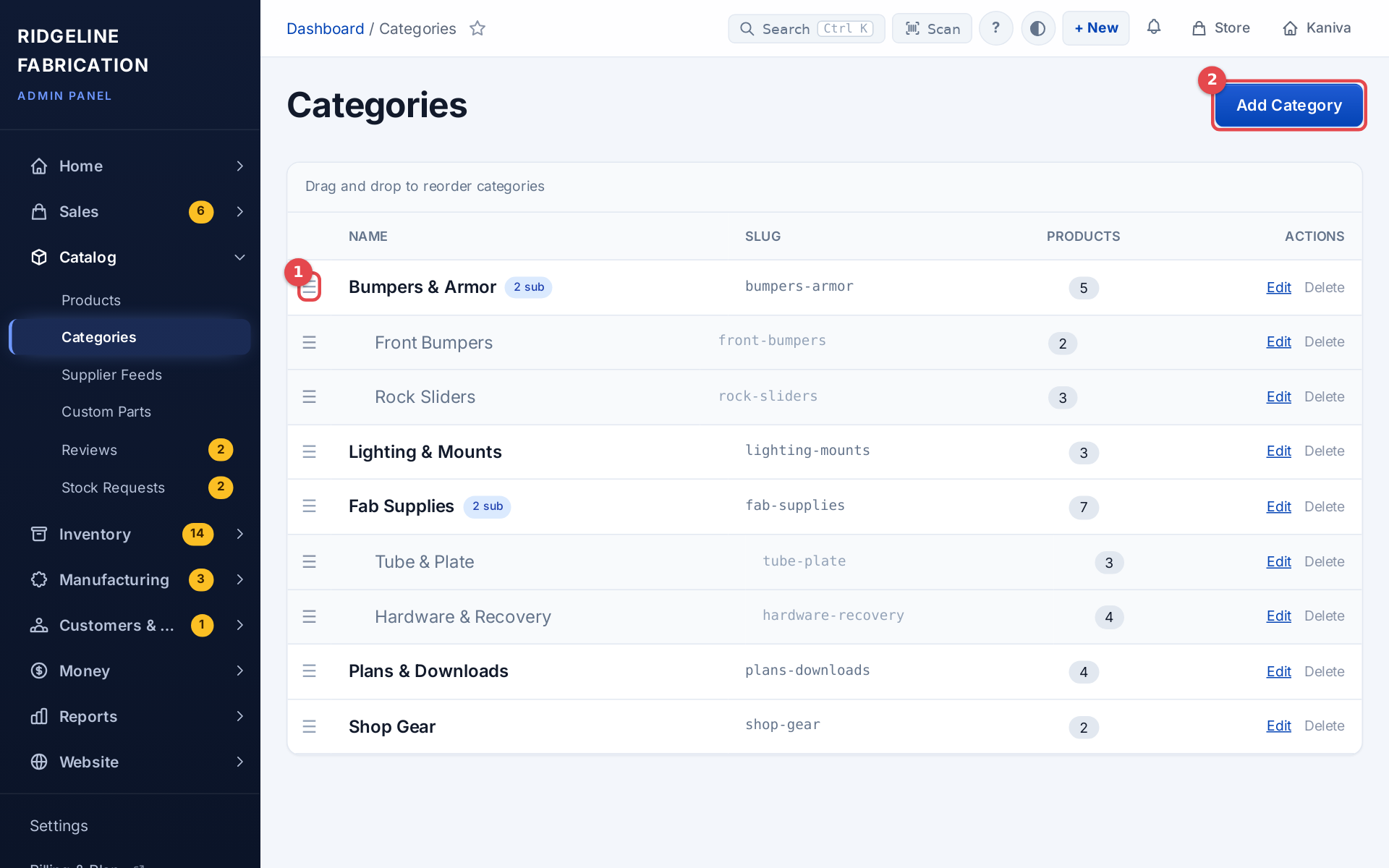 The Categories list with drag handles