Discount Codes
Codes customers type at checkout for money off their order.
Creating a discount code
- Open Sales → Discount Codes and click + New Code.
- Fill in the form:
| Field | What it does |
|---|---|
| Code (required) | What customers type at checkout. Saved in capitals |
| Description | An internal note about what the code is for |
| Discount Type (required) | Percentage (%) or Fixed Amount ($) |
| Value (required) | The amount: 20 means 20% or $20 |
| Minimum Order Amount | The code only works when the cart is at least this much |
| Max Discount (for %) | A cap on a percentage code, for example no more than $50 off |
| Total Usage Limit | How many times the code can be used in all |
| Per User Limit | How many times one signed-in customer can use it |
| Start Date | The code works from this date |
| Expiration Date | The code stops working after this date |
| Active | Untick to switch the code off without deleting it |
| Stacks with Customer Group Discounts | Whether the code adds on top of a customer group's discount (see below) |
- Click Create Discount Code.
To change a code, click Edit on the list, change the fields and click Update Discount Code. The edit page shows how many times it has been used.
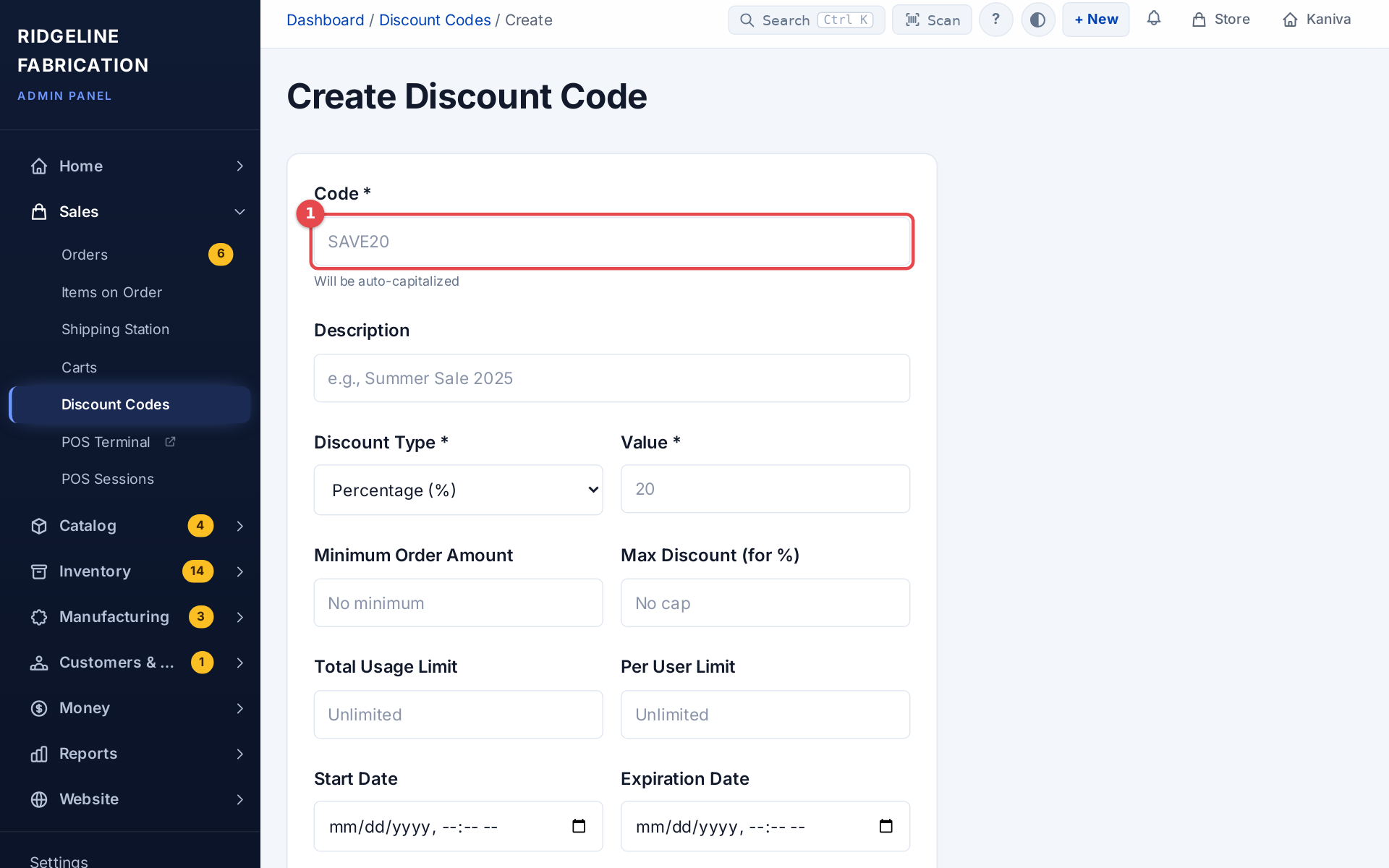 The New Code form
The Discount Codes list
Each code shows its Discount, Usage (times used, and the limit if there is one), Valid Period (its dates, or No limits), Status and Edit / Delete. Status reads Active only while the code can actually be used: a code that is switched off, not started, expired or used up reads Inactive. Codes that stack with group pricing are marked + Stacks with group pricing.
Discount types
- Percentage (%): a share off the order subtotal, for example 20% off. Use Max Discount (for %) to cap it.
- Fixed Amount ($): a set amount off, for example $10. It never takes the order below zero.
Stacking with customer group discounts
When a customer belongs to a customer group with special pricing (for example "Dealers get 15% off"), Stacks with Customer Group Discounts decides how the two work together:
Ticked (stacks):
- Both apply: the code comes off the price the customer already gets from their group.
- Example: a 15% group discount and a 10% code together save the customer about 23.5%.
- Good for loyalty rewards and promotions for your best customers.
Unticked (doesn't stack):
- The customer gets whichever is better, the group discount or the code, not both.
- Example: a 15% group discount and a 10% code: the customer gets 15% (the group is better).
- Example: a 15% group discount and a 25% code: the customer gets 25% (the code is better).
- Good for public promo codes you don't want to double up.
Guests (customers who aren't signed in) have no group, so a code always applies in full for them.
Products a code leaves out
Each product has Discount codes apply to this product on its Pricing & Cost tab, ticked by default. Untick it and no code takes money off that product:
- A code works out its discount, and checks its Minimum Order Amount, on the other items in the cart only.
- When nothing in the cart can take the code, the customer sees This code doesn't apply to the items in your cart.
- Add-ons follow the item they were bought with.
- A refund gives back only the discount that item had: refunding an item the code left out returns its full price, with no discount taken off.
Tips
- Use codes people can read and remember:
SUMMER25, notABC123. - Set an Expiration Date to create urgency.
- Use Per User Limit to stop one customer using a code over and over.
- Watch Usage to see how a campaign did.
- Untick Active instead of deleting a code, so its history stays.