Count and adjust stock
Use this when what's on the shelf doesn't match Kaniva: a recount, a damaged part, stock in the wrong bin, or stock you never put away. You end up with the right number in the right bin, and a stock movement that records what changed and why.
The flow
- StartThe shelf doesn't match Kaniva
- Is Advanced Inventory on for your store?No
- Open Catalog → Inventory and type the right Stock
- Click Save All Changes
- Done
Yes- Carry on below
- 1Open the part's page: scan its label, or click its stock in Inventory → Items
- 2Find the bin under Where it is
- What needs fixing?Wrong count
- Click Count, type how many are there, Save count
Lost or damaged- Click +/−, type a minus number and a reason, Save
Wrong bin- Click Move, pick the bin and how many, Move
Not in a bin- Click Put in a bin, or Write off what's gone
- 3Check Recent stock movements on the item's page
- TipAt the shelf, Inventory → Scan stock does the same: scan the bin, the part, then Count
- DoneThe bins and the total match the shelf
Step by step
Without Advanced Inventory
There are no bins: each product has one stock number. Type the right number in the Stock column on Catalog → Inventory and click Save All Changes, or change Stock Quantity on the product.
1. Open the part's page
Scan the part's label with the Scan box or a barcode scanner, or click its stock number in Inventory → Items (it's a link: "Change stock bin by bin"). For a product, Change stock bin by bin → under Stock Quantity on the product form opens the same page.
2. Find the bin
Where it is lists every bin the part is in, home bin first (marked Home). Stock that's in the total but in no bin is listed last as Not in a bin.
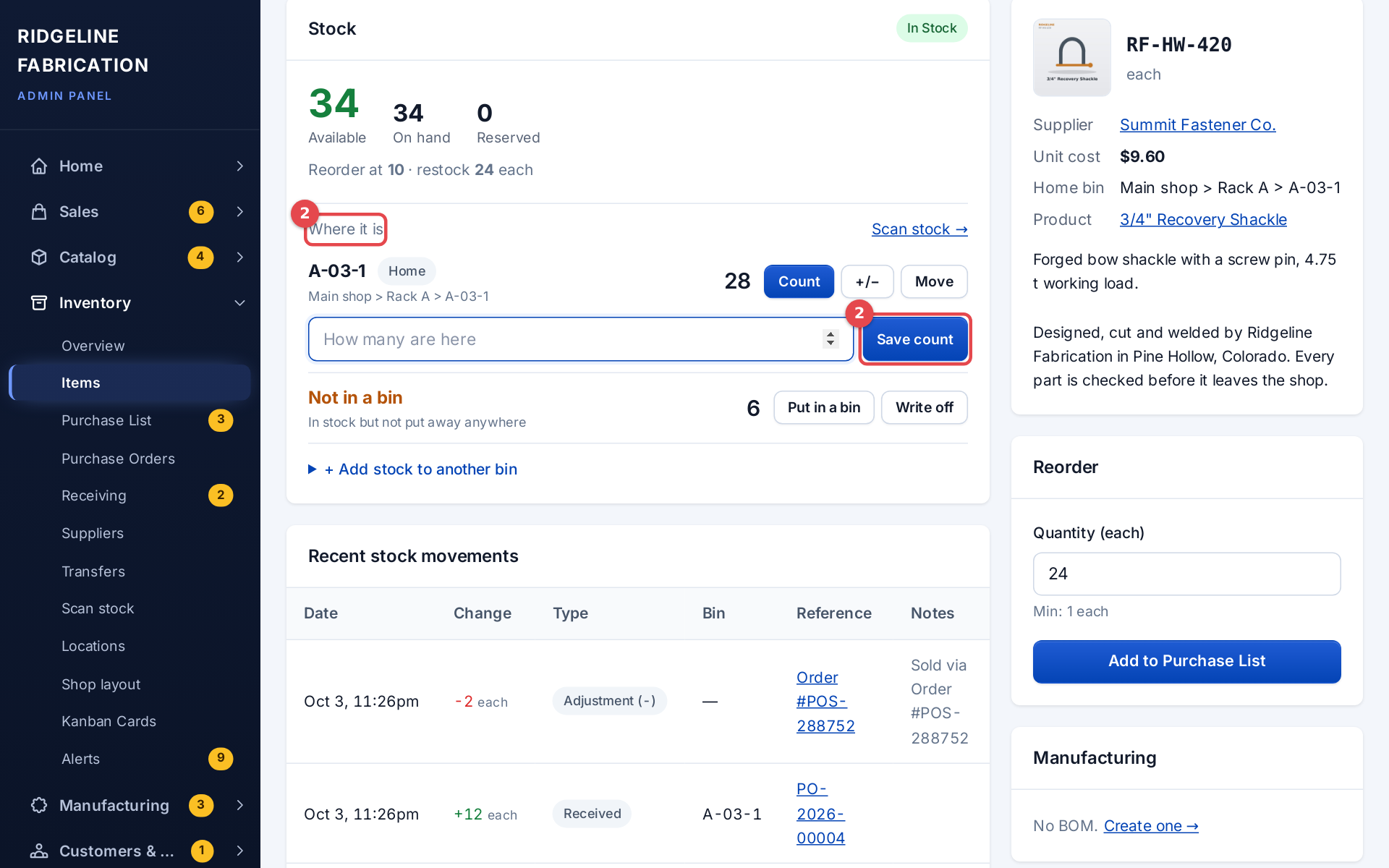 An item's bins under Where it is
Fixing the count
- The count is wrong: click Count on that bin, type how many are really there and click Save count. The bin is set to that number and the difference is booked as a count. Count each bin the part is in.
- Fewer than Kaniva thought, and open orders want this part: Kaniva asks before saving, for example You counted 0 at J-01-8 (it had 2). 1 is held for Order #A273F3A2 and not picked yet. Were the missing ones already pulled for that order? Click Yes, pulled for #… if they're set aside for that order (with several orders, type how many were pulled for each and click These were pulled): they're recorded as picked and moved to Packing, so packing the order takes them once and nothing is booked as lost. Click No, they're missing if they're really gone: the difference is booked as a count and the order waits for stock.
- Some are lost or damaged: click +/−, type a negative number (for example -2) and a reason, and click Save. Kaniva won't take a bin below zero.
- Found extra: +/− with a positive number, or + Add stock to another bin for a bin the part isn't in yet.
- It's in the wrong bin: click Move, pick the bin it's really in, type how many (blank moves all of it) and click Move. The total doesn't change.
- Not in a bin: Put in a bin puts that stock away in a bin without changing the total. Write off removes some of it (lost or damaged), with a reason, without touching any bin.
The item's total, the bins and a linked product's stock always change together.
Stores with no locations at all see Adjust stock (a number like +10 or -5 and a reason, then Adjust) and Count (the total you counted, then Save count) instead of bins.
3. Check the movements
Recent stock movements on the item's page lists each change with its bin, so you can see what was counted, moved or written off.
Counting at the shelf
To count with a scanner or phone, open Inventory → Scan stock with Put away stock chosen, scan the bin, scan the part, tap Count, type how many are there and tap Save count. A count that matches is recorded too. If the count is short and open orders want the part, the same question as on the item's page appears under the count. See Putting stock away.

If something goes wrong
- Stock below zero on the Items list ("Stock is below zero"): more was sold than Kaniva thought you had. Count the bins to set it right.
- The number changed by itself: picking on a phone moves stock from its bin to Packing; packing takes it from there (POS sales take it at once, from the home bin first, then the fullest other bins, then stock that's in no bin). Until an order is packed its stock shows as Reserved. Returns and received stock go into the home bin. A supplier feed that updates stock books its changes as counts. Recent stock movements shows which it was.
Related
- Inventory: stock on the item's page, how sales change stock
- Bins, shop layout and scanning
- Add a part and put it on a shelf
- Cancel or refund an order