Homepage
Your homepage is a stack of sections you add, fill in, reorder and switch on or off.
Open the homepage editor
- Website → Homepage, or
- Edit Homepage at the top of Website → Pages, or
- Edit homepage in the bar along the bottom of your storefront's homepage (shown to owners and admins)
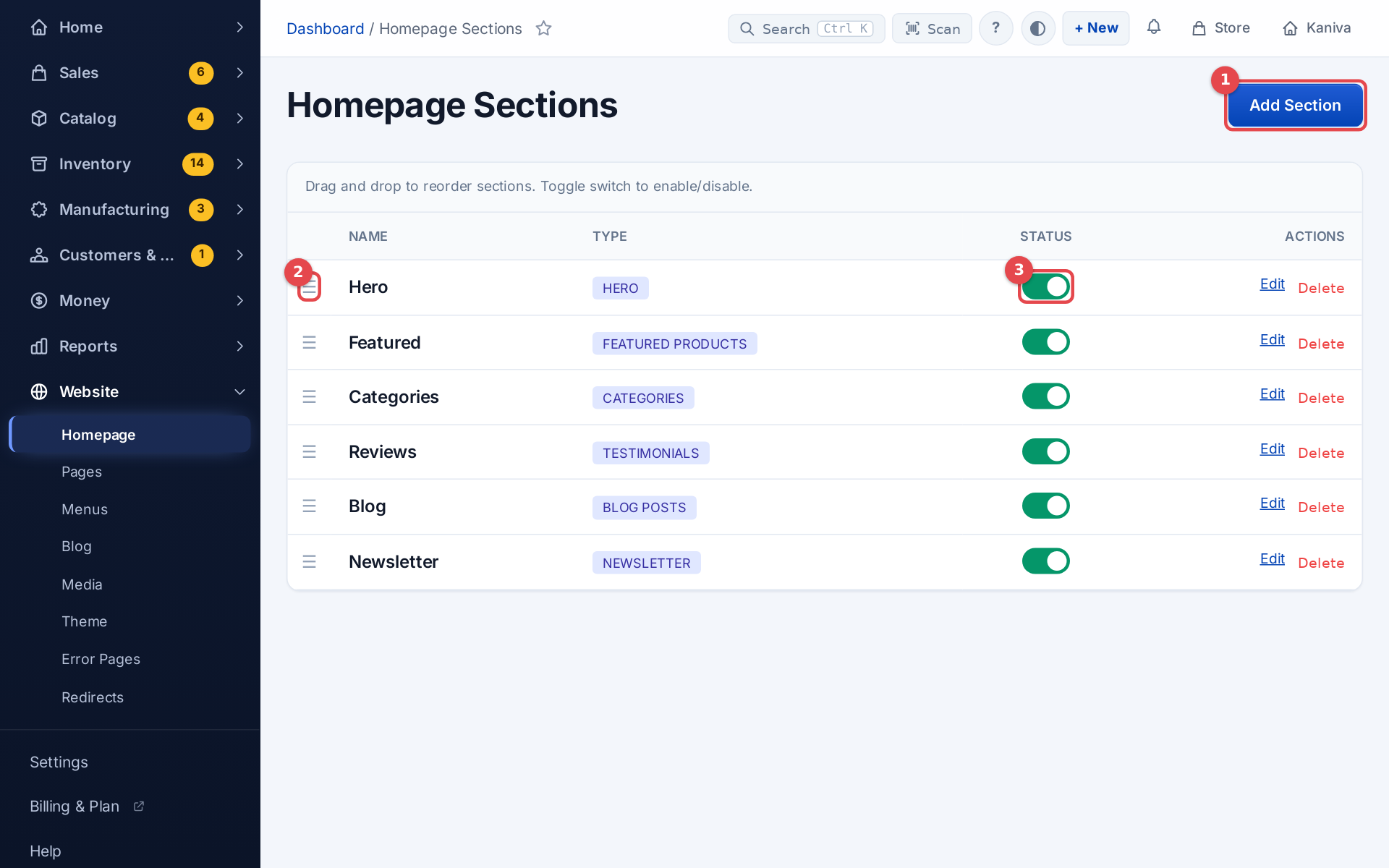 The homepage sections list
Add a section
- Click Add Section
- Give it a Name (only you see it) and pick a Section Type
- Fill in that type's settings. Leave Active ticked to show it
- Click Create Section
Click Edit on a section to change it, or Delete to remove it.
Reorder and hide sections
- Drag a section by its handle (☰) to move it. The new order saves by itself
- Use the toggle in the Status column to hide a section without deleting it
Section types
| Type | What it shows |
|---|---|
| Hero Banner | A big photo with a heading, text and buttons |
| Featured Products | A grid of products (see below) |
| Category Grid | Category cards, optionally with product counts |
| New Arrivals | Your newest products |
| In Stock Products | Products you can ship now |
| Latest Blog Posts | Recent posts, with optional excerpt, date and category |
| Testimonials | A reviews band from your real, approved reviews |
| Newsletter Signup | An email signup form |
| Custom HTML | Your own HTML and CSS. Scripts, embeds and forms are taken out when you save |
| Image Banner | One image, optionally linked |
| Text Block | A title and text with a background color and alignment |
| Rich Text (WYSIWYG) | Formatted text from the editor |
Hero Banner
- Title, Subtitle, Button Text and Button URL, plus an optional second button (Second button text (optional), Second button link)
- Background Image (choose with Browse or Upload New), or leave it empty for a solid Background Color
- Image Size, Image Position and Overlay Opacity (a dark layer that keeps text readable)
- Full Width Hero: edge to edge with no gap under the header. It must be the first section
- Minimum Height (px): leave empty to fit the content
On Trailhead there are also:
- Text position on a computer: put the text over the quiet side of your photo. Phones always show it on the left
- Phone photo (optional) and Phone photo position: a separate photo for phones, for when the wide one crops badly on a tall screen
Featured Products
Products to show picks which products appear:
- Products ticked "Featured", newest first
- Best sellers: ranked by units sold, then by reviews
- Best sellers that are in stock
Set the Section Title, Number of Products and Columns.
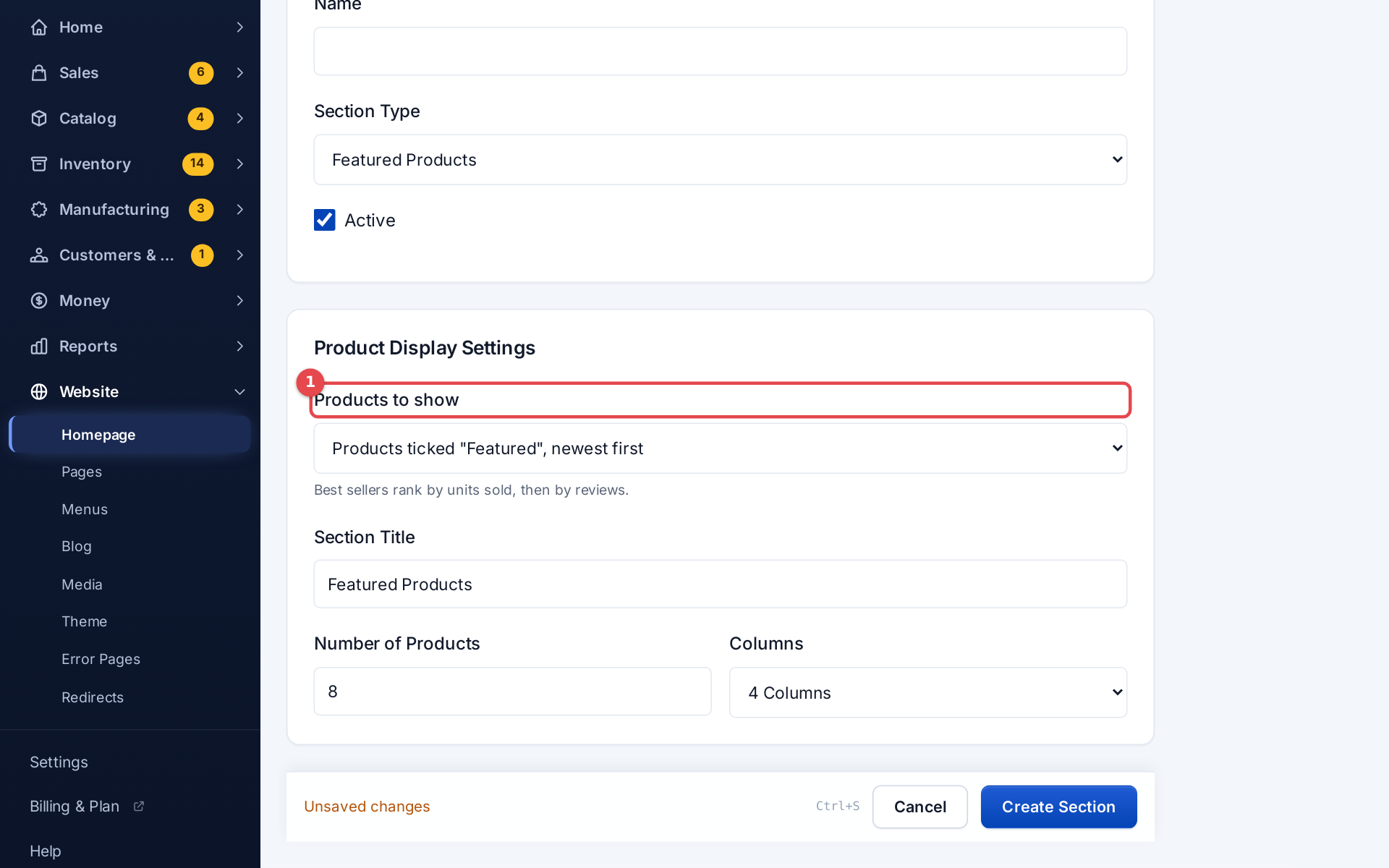 Choosing which products a Featured Products section shows
Testimonials
The Testimonials band shows your store's rating and up to three quotes, each naming its product, with a link to all your reviews. You choose the quotes with ☆ Feature on homepage in Catalog → Reviews; with none chosen, it uses your latest five-star reviews. See Reviews.
Sections and themes
Your homepage sections carry over when you change theme: the same content, drawn in the new theme's style. Trailhead adds its own homepage blocks (trust strip, featured categories such as Shop by vehicle tiles, story band) in its Customize panel; see Themes.