Set up your store
From a new account to a store that can take its first order. Home → Setup walks you through it, and the steps follow the kind of store you run: a store that ships products, one that builds to order, or one that sells downloads.
Before you start
- Create your store from kaniva.io (see Getting Started). You land on Setup straight away.
- Have your Stripe login (or your bank details, to create a Stripe account) and the address you ship from to hand.
The flow
- StartYou just created your store and Setup is open
- 1Fill in Your shop and click Save and continue
- 2Add your logo and a few details on A few finishing touches, or click Skip for now
- 3On Get paid, click Connect with Stripe and finish Stripe's sign-up
- What kind of store is it?Ships products
- On Ship orders, add your ship-from address and choose Shippo or fallback rates
- Click Add a product and create your first product
Builds to order- Set up Ship orders the same way
- Click Set up instant quoting, or add a build-to-order product
Sells downloads- There is no shipping step
- Click Add a digital product and attach the file
- 4On See it the way a customer will, click Preview store
- 5Finish any step you skipped
- 6Run your first real order through the store
- DoneSetup says Your store is ready to sell
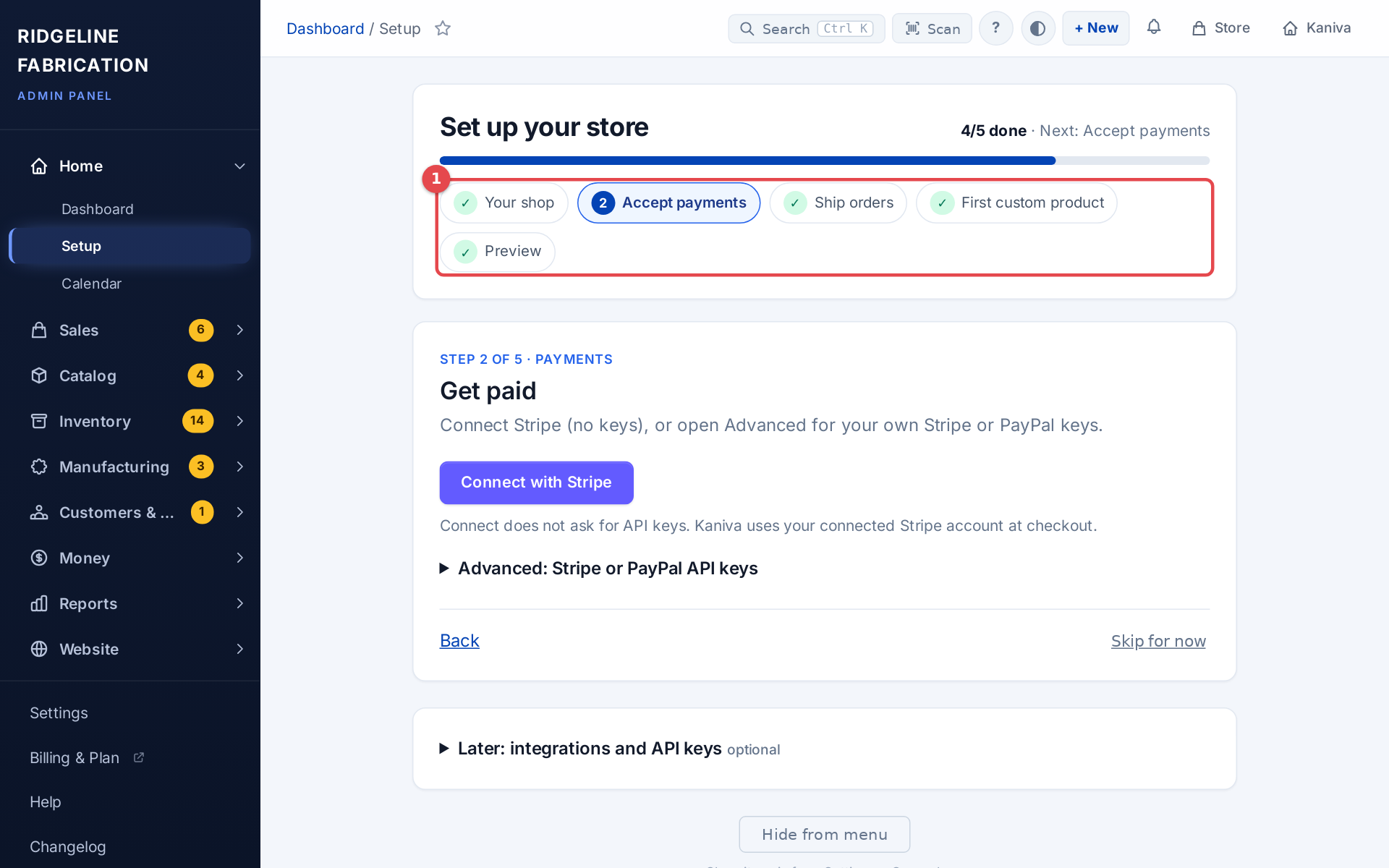 Setup's step list and progress bar
Step by step
1. Fill in Your shop
The first screen, Tell us about your shop, asks:
- Store name and Contact email: the name customers see, and where customer emails go.
- What do you make?: type it, or click a suggestion.
- How do you sell? (pick all that apply): Ready to ship, Made to order or Quotes.
- Typical price of an order: Under $25, $25 to $100, $100 to $500 or Over $500.
- How do orders reach customers?: I pack and ship, Local pickup or delivery, Both or Digital delivery.
All of them are needed to finish this step. Your answer to What will you sell first? at signup has already filled in some of them; change anything that's wrong.
These answers decide the rest of Setup:
- Tick Made to order or Quotes and Setup treats you as a build-to-order store.
- Choose Digital delivery and the shipping step disappears.
- Anything else is a store that ships products.
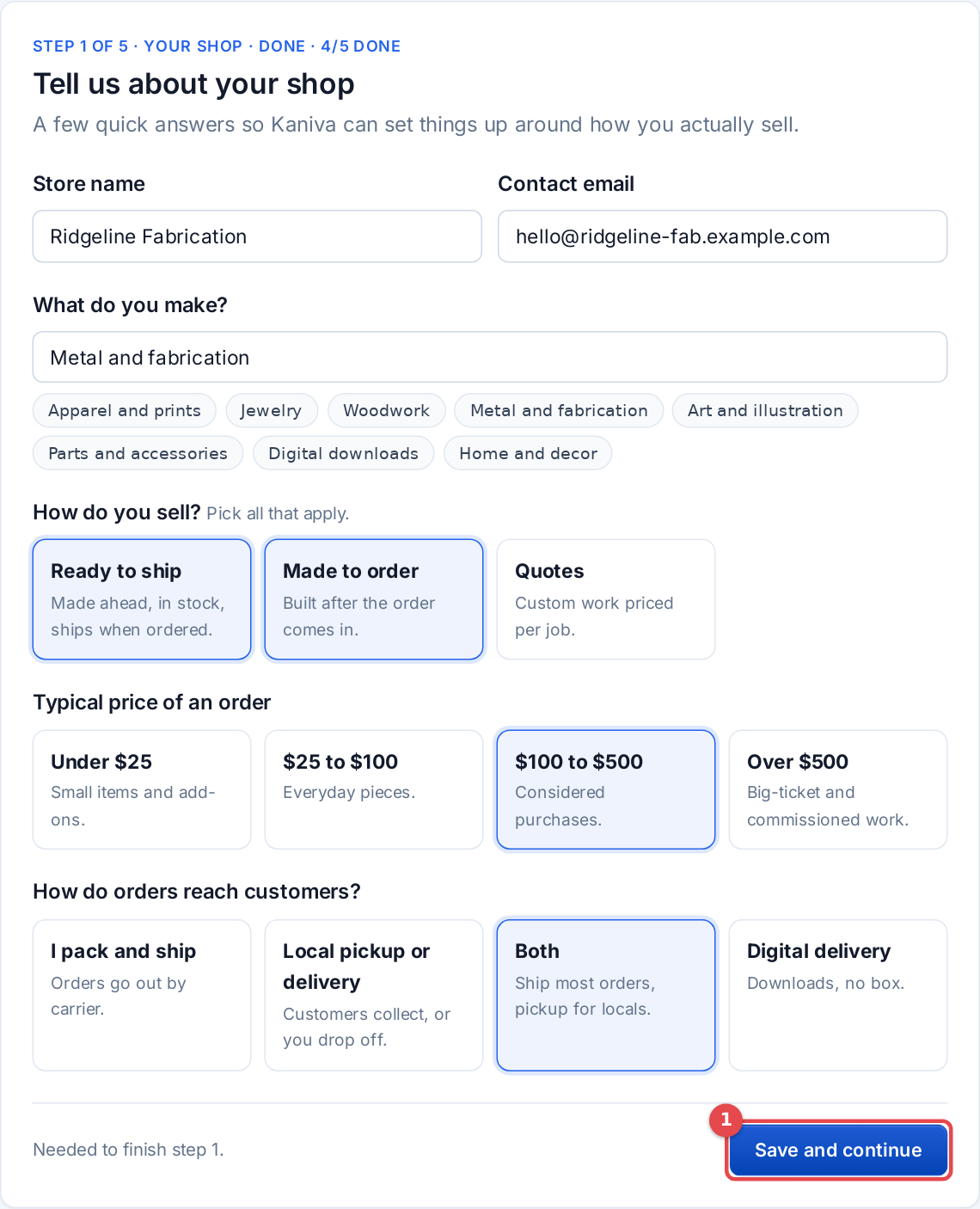 The Your shop questions
2. Add the finishing touches (optional)
A few finishing touches has your Logo (choose a file and click Upload logo) and three quick questions: how the site should feel, your usual lead time, and where you sell today. None of it is counted. Skip for now and Setup brings it back once the main steps are done.
3. Connect payments
On Get paid, click Connect with Stripe. Stripe asks for your business and bank details, then sends you back to Setup. You don't need any API keys. If Stripe still needs something, the step stays open and the button continues where you left off.
Already have your own Stripe or PayPal account keys? Open Advanced: Stripe or PayPal API keys, enter them and click Save payment keys.
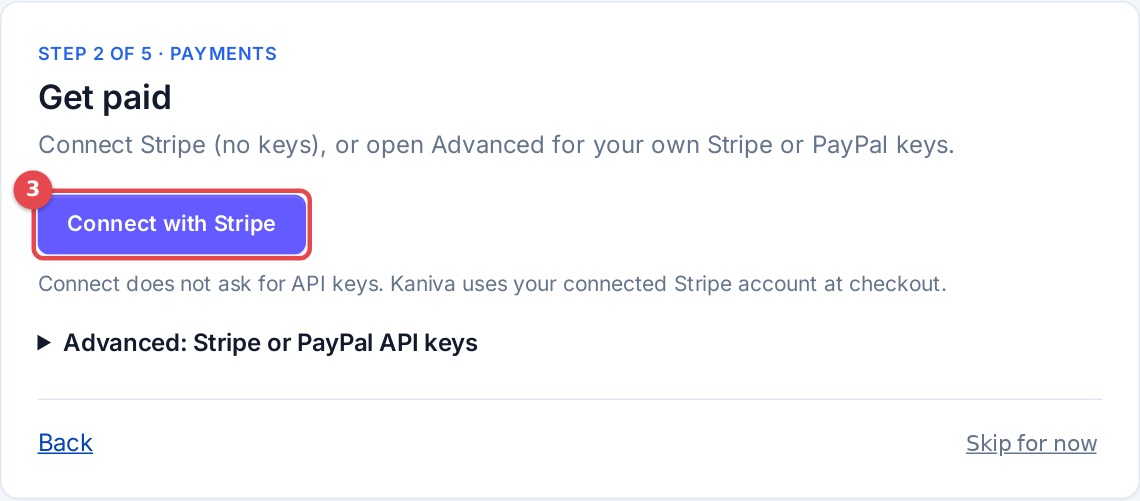 The Get paid step
Shipping and your first product
What comes next depends on your kind of store.
Ship orders (stores that ship products or build to order):
- Enter your ship-from address: From name, Street, City, State, ZIP, Phone and, if you like, a ship-from email.
- Under How should checkout price shipping?, choose:
- Shippo live rates: real carrier prices and labels. Paste your Shippo API key.
- Use fallback rates: a flat Base ($) plus a Per pound ($) amount. Check the numbers and tick I checked these rates and they are right for my shop.
- Click Save and continue.
Printers, maps and the rest of the shipping settings can wait (see Shipping).
Your first product:
- Ships products (Add your first product): click Add a product and create one. See Products.
- Builds to order (Get ready for custom work): every new store comes with instant quoting ready, with starter services, materials and rates. Click Set up instant quoting (it opens Catalog → Custom Parts), change the materials and rates to yours, tick Enable Custom Parts Quoting and click Save Settings. Customers can then upload a DXF or STL file and get a price. Or click or add a build-to-order product to sell a fixed build instead. Either one completes the step.
- Sells downloads (Upload your first download): click Add a digital product, set the type to Digital Download and attach the file. See Digital products.
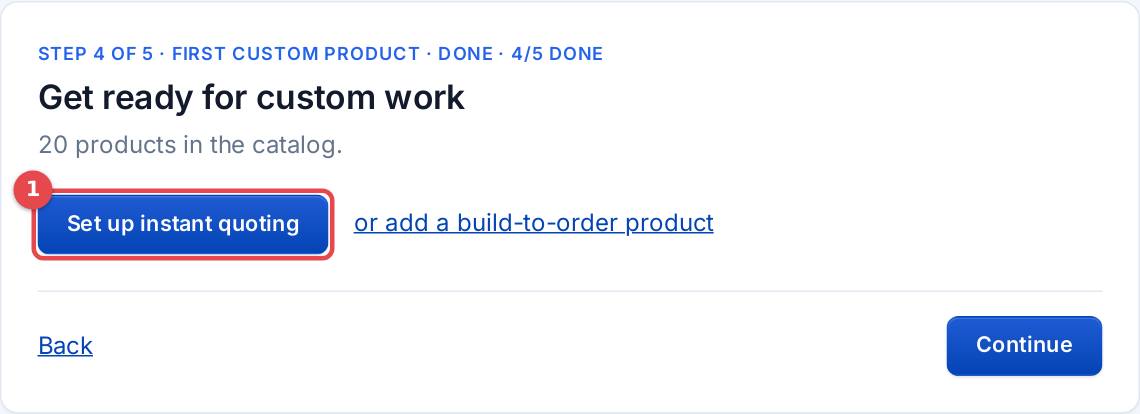 The first product step
4. Preview your store
On See it the way a customer will, click Preview store. Your storefront opens the way a customer sees it. Look at the homepage, a product and the cart.
5. Finish what you skipped
Every step except Your shop has Skip for now. After the preview, Setup goes back through what you skipped, once. If you skip again, the last screen, Still to do, lists what's left with a link to each. Setup isn't finished until they're done.
6. Run your first real order
When every step is done, Setup shows Your store is ready to sell and one more thing to try, for your kind of store:
- Ships products: Ship your first order. Place a test order, pack it at the packing station and print the label, or mark it shipped.
- Builds to order: Turn an order into a work order. Place a test order for your custom product, then create its work order from the order page.
- Sells downloads: Buy your own download. Buy your product with a 100% discount code or a test card and download the file, the way a customer will.
It turns green once your store has done it. It isn't counted in Setup. Click Go to the dashboard when you're ready.
If something goes wrong
- Connect with Stripe isn't there. Stripe Connect isn't available for your store, so Setup asks for your own Stripe or PayPal keys instead.
- The payments step stays open after Stripe. Stripe still needs part of the sign-up. Click Connect with Stripe again to continue it.
- I chose the wrong kind of store. Go back to Your shop (click it in the step list) and change How do you sell? or How do orders reach customers?. The steps change to match.
- Setup has gone from the sidebar. It leaves once everything is done. Open it from the dashboard with Review setup. If you clicked Hide from menu, tick Show Setup in the menu in Settings → General.
Related
- Getting Started
- Products
- Shipping
- Settings
- Billing