Take a return
When a customer sends items back. You end up with the items checked in (back on the shelf if they're fine), the customer refunded what they're owed, and the return on the order's record.
Before you start
- A return is for an order that has shipped. To change an order that hasn't shipped, edit or cancel it instead (Cancel or refund an order).
- Set your returns rules once at Settings → Order steps, under Returns: a Restocking fee (0 for none), whether to Refund the original shipping on returns (off to start with), and whether to Take the return label cost off the refund (on to start with). You can change each one when settling a return.
The flow
- StartA customer wants to send something back
- 1Open the order from Sales → Orders
- 2Open More and click Start a return…
- 3Set how many of each item are coming back, and why
- 4Click Start return: the return gets its number, like R-1042-1
- TipGive the customer the return number to put in the box
- 5When the box arrives, set each item's condition and click Mark received
- Refund the customer?Yes
- Check the restocking fee, label and shipping, then click Settle return
No- Choose Close with no refund and click Settle return
- DoneThe items are checked in and the customer has what they're owed
Step by step
1. Start the return
Open the order and click More → Start a return…. Under Coming back, set how many of each item the customer is sending ("of 2" is how many can still come back: not refunded and not on another return). Choose Why (wrong size or fit, arrived damaged, not as described, changed their mind, other), add a Note if you like, and if you paid for a return label, its cost under Return label you paid for.
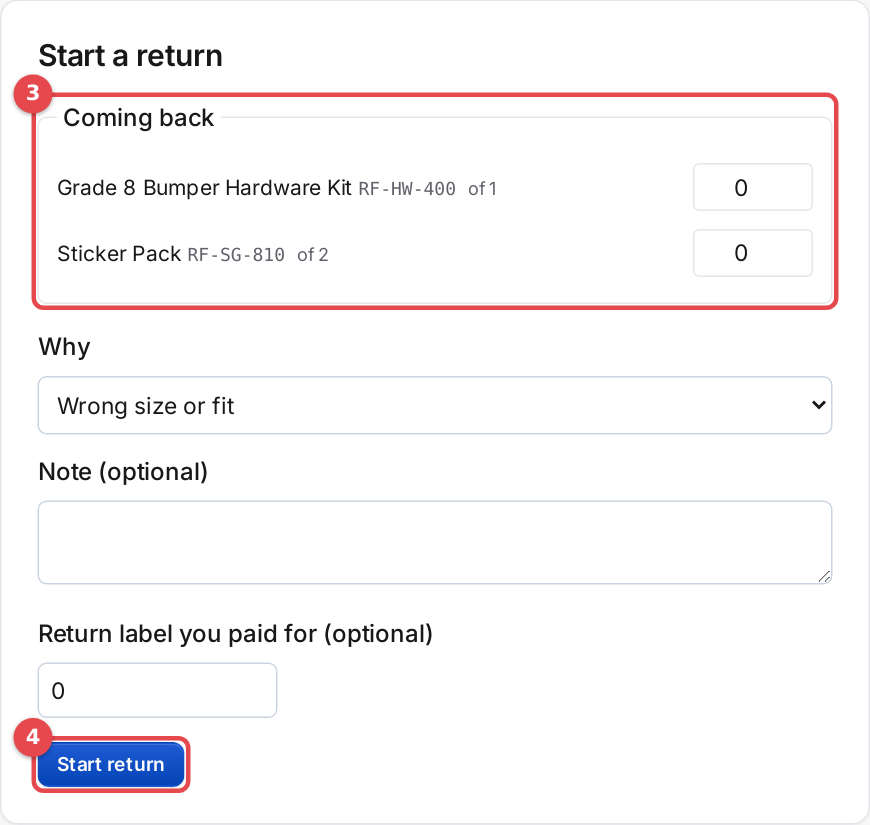 Starting a return
Click Start return. The return gets a number made from the order number, like R-1042-1, and shows as a card on the order and in Sales → Returns. Give the customer that number to put in the box.
2. Receive the items
When the box arrives, find the return in Sales → Returns (search by return number, order or customer) or on the order. For each item choose how it came back:
- Resellable: it goes back in stock.
- Damaged or Scrap: it doesn't go back in stock.
Click Mark received. If the items never come back, Call off this return frees them up again.
3. Settle it
The card now shows Refund $…: the items and their tax, less your Restocking fee (a percent of the items' price), less the return label when Take the return label … off the refund is ticked, plus the original shipping when Refund the original shipping is ticked. Change any of them for this return; the total updates as you go.
Click Settle return. The refund goes back through Stripe or PayPal (a cash order is recorded, and you pay it back by hand), and the customer gets the refund email unless you untick Email the customer the refund. The refund shows in the order's Refund Information card and counts on the day it was made.
Close with no refund settles a return sorted another way. Its items stay counted as returned.
Dropshipped items
A dropshipped item comes back to you, not to the supplier. Sending it on to them is your own arrangement with the supplier.
If something goes wrong
- Start a return… is missing. The order hasn't shipped, or every item is refunded or already on a return.
- "The refund didn't go through". Stripe or PayPal turned the refund down. The return stays received: check your payment dashboard and settle it again.
- The refund form leaves an item out. It's on a return. Settle the return to refund it.